A volleyball score keeper app that keeps the match moving.
CourtsideView is a volleyball scoring app for iPhone, iPad and Android. Use Scorekeeper to keep a family match score without building a roster; choose Courtside mode for player-level tracking. Local Scorekeeper can start without an account. For official scorer duties, use the system your event accepts.
Available for iPhone, iPad, and Android.
Fast point entryTap through rallies without rebuilding a paper trail after every whistle.
Rotation contextUse Courtside mode when you need roster and lineup context.
Player statsChoose the separate Courtside workflow for player-level actions.
FanView sharingSend one live score link so the sideline and family chat can follow along.
Score the set without losing the story.
A basic volleyball scoreboard app can count points. CourtsideView is built around the way match day actually feels: rosters are changing, rotations matter, parents are asking for the score, and someone needs to know what just happened.
Use CourtsideView to keep the set moving while preserving the context around the match. Score rallies, manage timeouts, follow the match state, and keep the players connected to the numbers on the board.
For scorekeepersScore quickly from the table or sideline with a focused match screen.
For coachesChoose Courtside mode to keep roster and rotation context close during the set.
For parentsShare live match context without turning the group chat into play-by-play duty.
For athletesTrack player stats so the work behind the score does not disappear.
From first serve to shared FanView link.
CourtsideView keeps the scorekeeper workflow simple: build the match, score the set, and share a live view when supporters need to follow along from another phone.
1. Set up the match
Check the team names and match format. A score-only match does not require a roster.
2. Score each rally
Record awarded points, timeouts and set progress in Scorekeeper. Use Courtside mode when you need player actions and lineup context.
3. Share live updates
Publish FanView when family, fans, or coaches need a live volleyball score link.
Live volleyball scores without the sideline scramble.
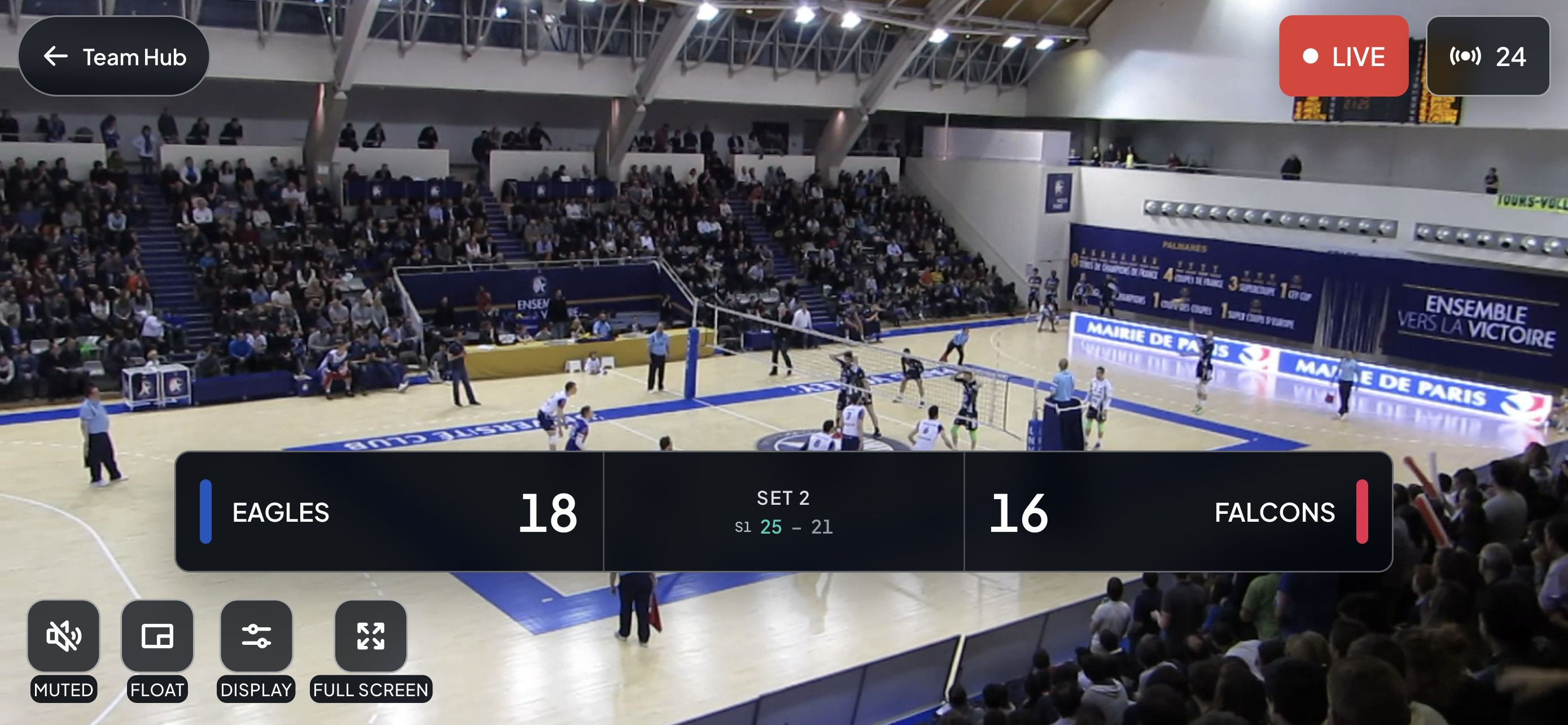
FanView gives supporters a shared web page with the match score and activity updates. Viewers and broadcasters need a registered account and internet. Supporters can use a browser without installing CourtsideView; optional video requires someone broadcasting.
That makes CourtsideView useful beyond the scorer table: it becomes the single source for the score, the set, the match context, and the next update everyone is waiting for.
A practical walkthrough
Keep a family score, then correct a wrong tap
Use Scorekeeper for points, sets and timeouts when you do not need player-by-player statistics. No roster is required for a score-only match.
Choose the score-only job
Open Scorekeeper. Check the two team names and the match format before starting. If you need player actions and lineup context, use Courtside player tracking instead.
Add the confirmed point
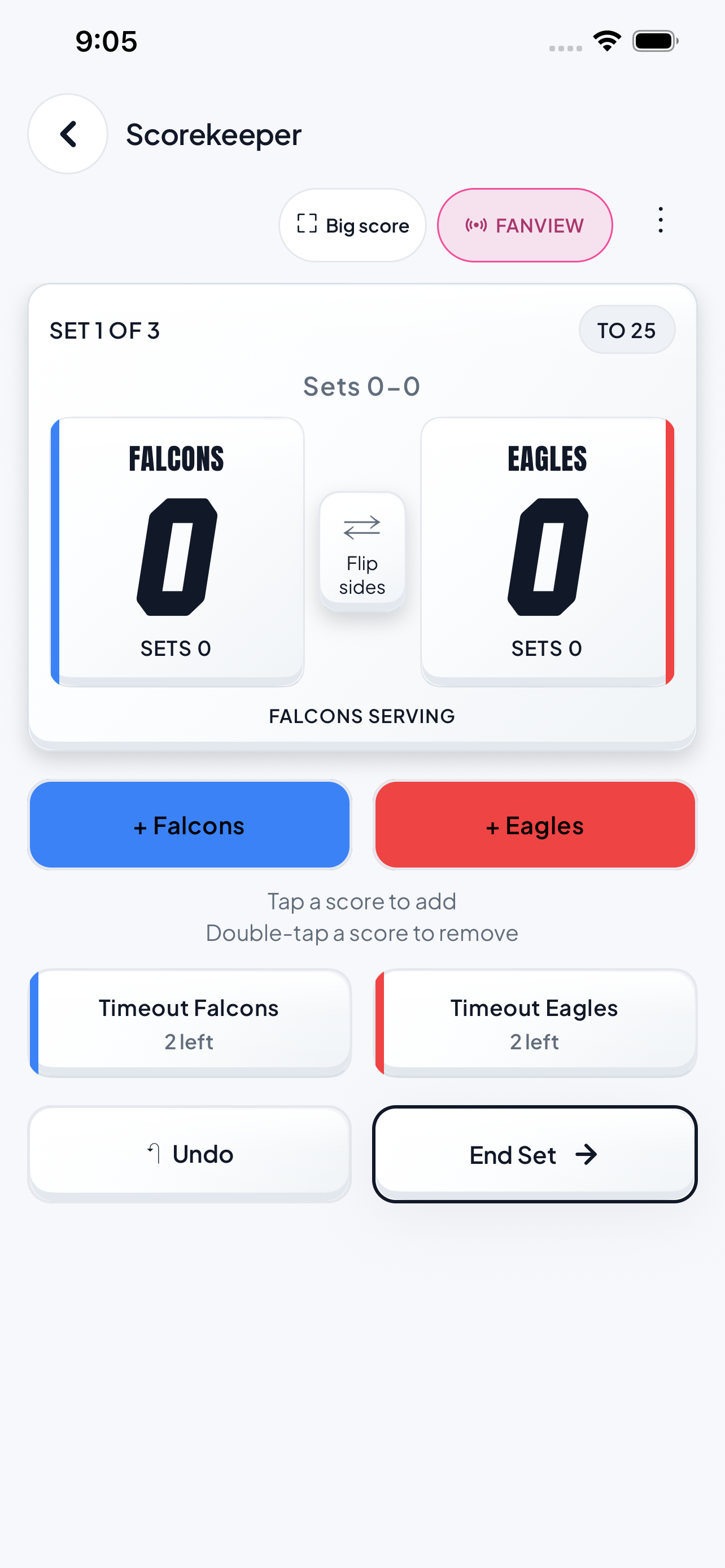
After the rally is awarded, use the scoring team’s point control. The example screen labels these “+ Falcons” and “+ Eagles.” Check the score against the court scoreboard at a natural pause.
Correct an immediately misplaced point
If you just gave a point to the wrong team, tap Undo, then add the point to the correct team. Check both scores before the next rally. This example covers the most recent point; do not assume Undo reverses every kind of event.
Check the pause or finish
Use the correct team’s Timeout control when a timeout is called. Confirm the set’s final score before End Set. Use FANVIEW only when you want to share; registration and internet are required.
Read the screen from top to bottom: match and team scores; point buttons; team timeouts; Undo and End Set. FANVIEW is the separate sharing action.
Fictional correction example
The score should be Falcons 10, Eagles 9. You accidentally give Eagles the next point, making it 10–10. Immediately use Undo to return to 10–9, then give Falcons the point: 11–9. Confirm the result before continuing.
For official scorer duties, use the system and training your event requires. A family scoring app does not automatically replace the event’s official scoresheet.
Written by CourtsideView · Updated October 26, 2026. Existing app imagery illustrates the controls and roles described; screen appearance can vary by version.
First-tournament field guide
Your first tournament as a volleyball scorekeeper
Start with one clear job: keep an accurate score that you and your supporters can follow. These eight steps cover a family scorekeeping workflow. Official scorer duties follow the event’s required system, instructions and training.
Reviewed October 26, 2026.
01
Confirm your role
Ask whether you are keeping a personal/family score or creating the official match record. Those responsibilities can involve different tools and training. A phone app should replace an event’s required scoresheet only when the event expressly accepts that system and workflow.
02
Learn the controls before play
Run a short practice match. Find point entry, the available correction action, timeout entry and end-set controls. Practise returning to the current match so you do not need to explore while a rally is under way.
03
Set up the correct match
Check both team names and the event’s match format. In CourtsideView, Scorekeeper is the simple score-focused starting point; a score-only match does not require building a roster. Use the fuller player-tracking workflow when that is the job you have agreed to do.
04
Make the score easy to check
Keep the screen where you can see it without missing the court. Check that you can distinguish the teams. Compare your starting state with the court scoreboard before the first serve. Keep the phone powered for the whole match.
05
Enter confirmed points consistently
Wait for the rally’s awarded result, then record the point for the correct team. If you immediately tap a point for the wrong team in CourtsideView, tap Undo, then add that point to the correct team. Check both scores before recording the next rally. At natural pauses, compare the score and set with the court scoreboard. If you missed a point, ask for the confirmed score instead of guessing.
06
Record pauses and close each set carefully
Record timeouts when called and check which team called them. Confirm the set’s final score before using the end-set action. Follow the event’s format and the app’s available workflow; this guide does not replace the competition’s rulebook.
07
Share only after checking the view
If you want supporters to follow, open FanView and test the shared view on another device. FanView requires internet and a registered account for viewing and broadcasting. Supporters can open the link in a browser without installing CourtsideView. Tell them whether the link has scores only or also has a live broadcaster; a score link does not guarantee video.
08
Confirm the finish
Check the final score before concluding the game. Let supporters know the match has ended. FanView links expire 15 minutes after game conclusion; send the next match’s information when it is available.
Can I use CourtsideView as a volleyball score keeper?
Yes. Use Scorekeeper for a score-only volleyball match with points, timeouts and set scores. No roster or account is required for local Scorekeeper. Choose Courtside mode with a registered account when you need player-level tracking.
Does CourtsideView share live volleyball scores?
Yes. FanView shares live scores and match activity through a browser link. Viewing and broadcasting require a registered account and internet. The link expires 15 minutes after the game concludes; video is optional.
Does CourtsideView track volleyball stats and rotations?
Courtside mode supports player-level tracking, roster context, lineup setup and rotation visibility. It is a different workflow from simple Scorekeeper and requires a registered account.
Download CourtsideView before first serve.
Start scoring volleyball matches on iPhone, iPad, or Android, then use FanView when the whole volleyball family needs the live score.